KPI Reviews
When HR publishes a KPI cycle for your department, evaluations are automatically created for your team members. Once an employee submits their self-assessment, it lands in your queue for review. Your job is to score each KPI item and submit your overall review.
The KPI Workflow at a Glance
Employee submits self-assessment
        ↓
You review and score (this is your step)
        ↓
HR finalizes
        ↓
Employee accepts or disputes
        ↓
Evaluation complete
Evaluation Windows
KPI cycles run on fixed dates. The Manager Review Window defines the period during which you can submit your review. Outside this window, the Submit Review button is disabled.
Requesting a Window Extension
If the manager review window has closed and you still need to submit a review, you can request an extension:
- Open the evaluation.
- Click Request Extension (appears when the window is closed and review has not yet been submitted).
- HR is notified and can reopen the window if approved.
This sends a notification to HR — the window is not reopened automatically. HR will follow up with you directly.
Step 1 — Find Evaluations Waiting for Your Review
There are two ways to get to evaluations assigned to you:
Option A — Via Actionable Items (recommended)
- Click Actionable Items in the left sidebar.
- Look for items labelled KPI Review Pending.
- Click the row to open that evaluation directly.
Option B — Via KPI Evaluations page
- Click KPI Evaluations in the left sidebar.
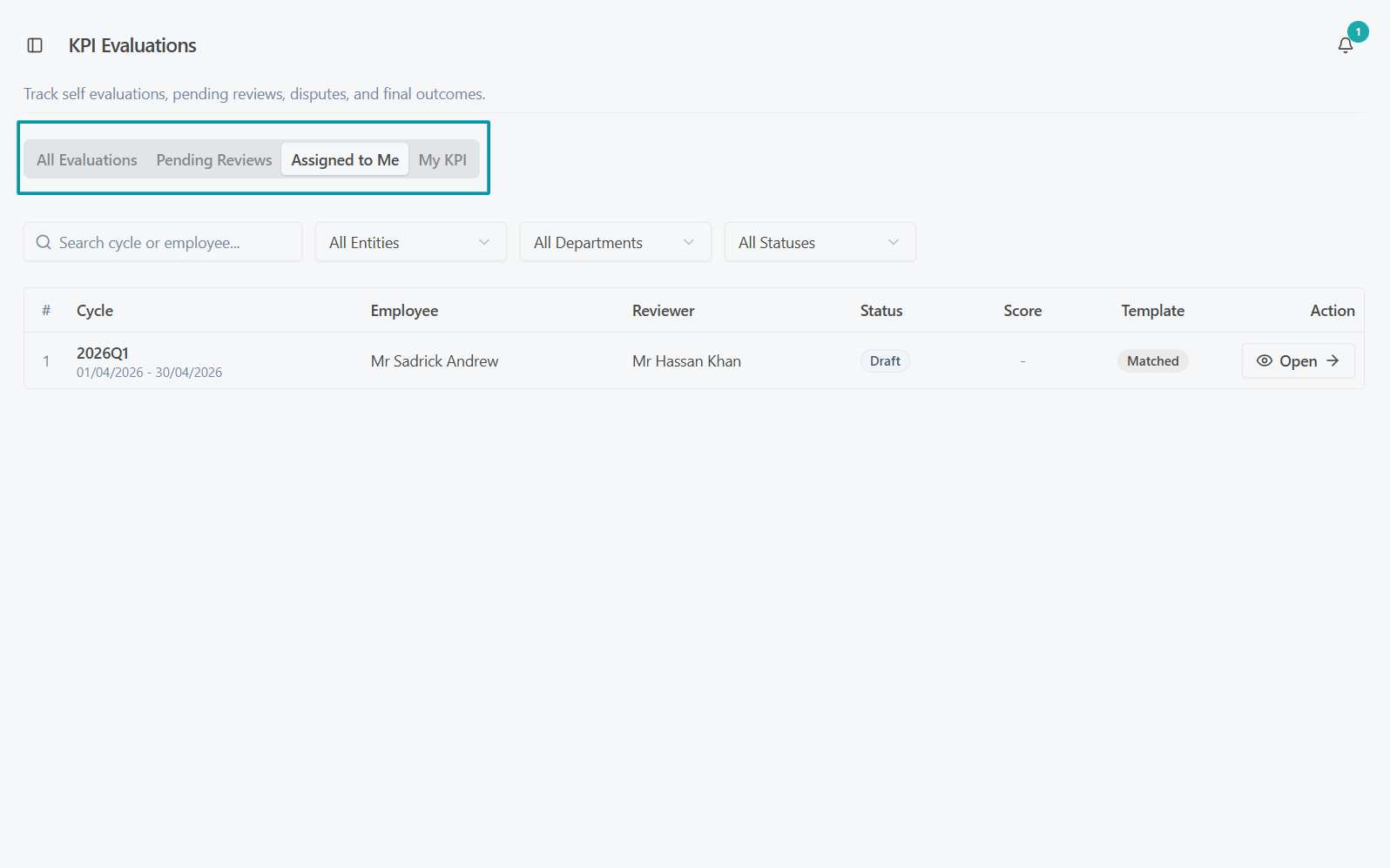
- Click the Pending Reviews tab — this shows only evaluations where the employee has submitted their self-assessment and is waiting for your review.
KPI Evaluations page — tabs overview
Step 2 — Open an Evaluation
Click Open on any evaluation in the list to open the full detail view.
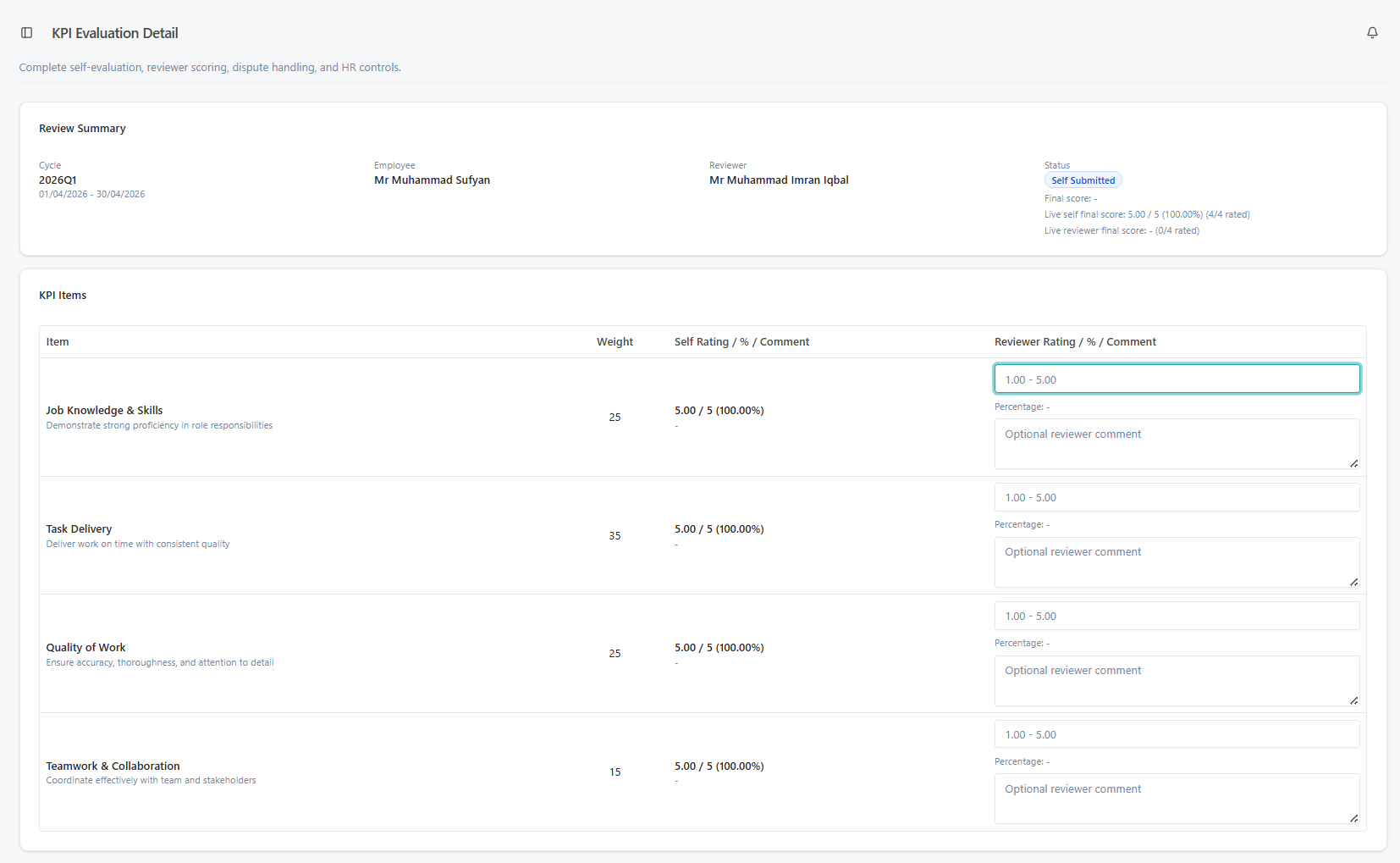
You will see:
- Review Summary — the employee's name, the cycle, and the current status
- KPI Items — the list of KPI items with their weights
- For each item: the employee's self-rating and comment on the left, and empty reviewer fields on the right for your scores
KPI review form — rating each item
Step 3 — Review the Employee's Self-Assessment
Before scoring, read through what the employee has written:
- Their self-rating (1–5) for each KPI item
- Their comment explaining their rating
- Any evidence they have uploaded (documents supporting their self-assessment)
Take this into consideration when forming your own scores.
Step 4 — Enter Your Scores
For each KPI item:
-
Click the Reviewer Rating field and select a score from 1 to 5.
Score Meaning 1 Poor 2 Below Average 3 Average 4 Good 5 Excellent -
Optionally add a comment — this is shown to the employee and should be professional and constructive.
As you score items, the Live Score Preview updates automatically to show the projected overall score and percentage.
Scoring in progress — live score preview updating
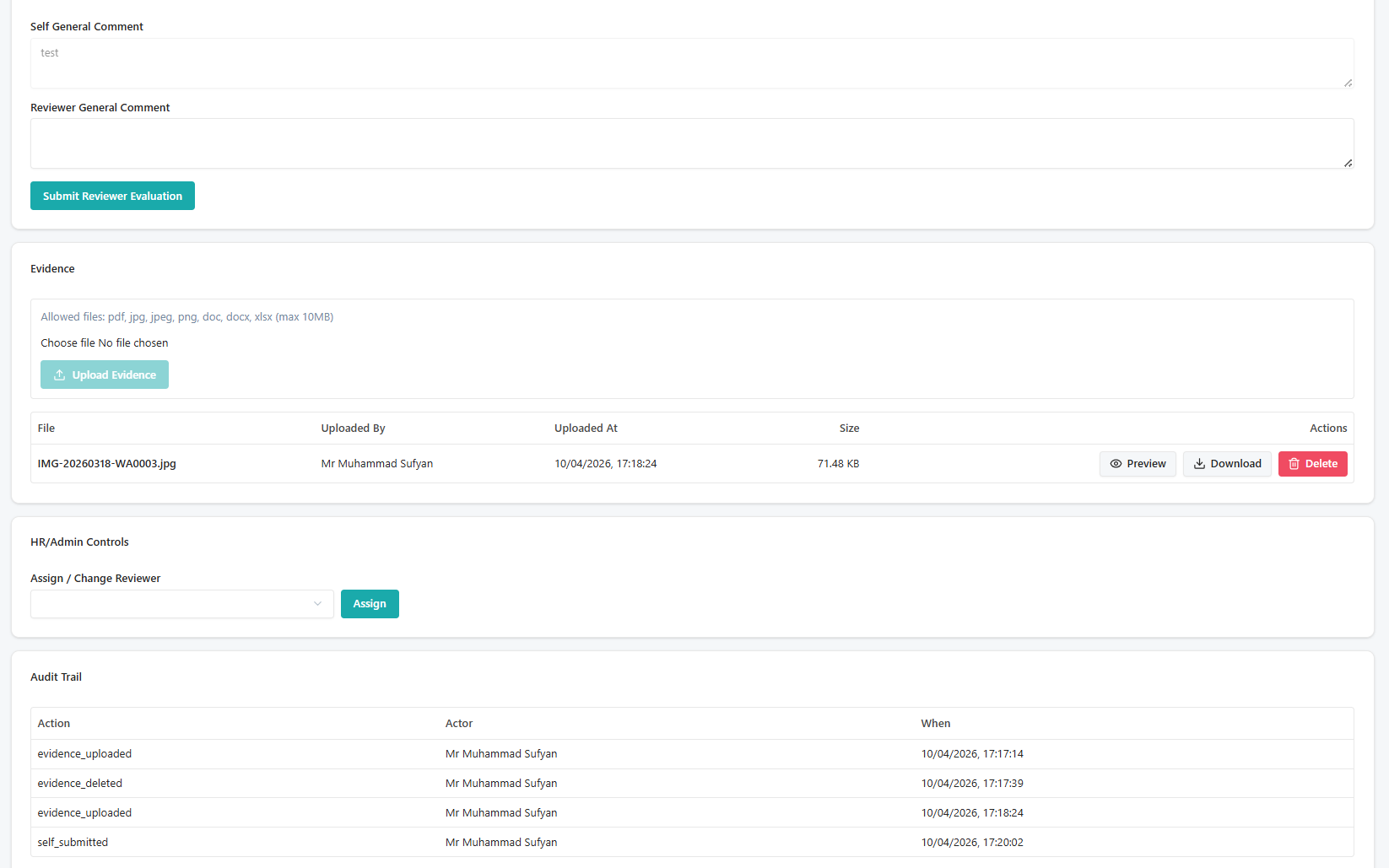
Step 5 — Add a General Comment (Optional)
Below the KPI items, there is a General Comment field for your overall remarks about the employee's performance. This is visible to the employee and HR after submission.
Step 6 — Submit Your Review
- Once all items are scored, click Submit Review.
- Confirm when prompted.
- The evaluation moves to Manager Reviewed status.
- HR is notified to do the final review.
- The evaluation is removed from your Pending Reviews queue.
Once submitted, you cannot edit your scores. Make sure all items are scored correctly before clicking Submit Review.
If an Employee Disputes and HR Asks You to Re-review
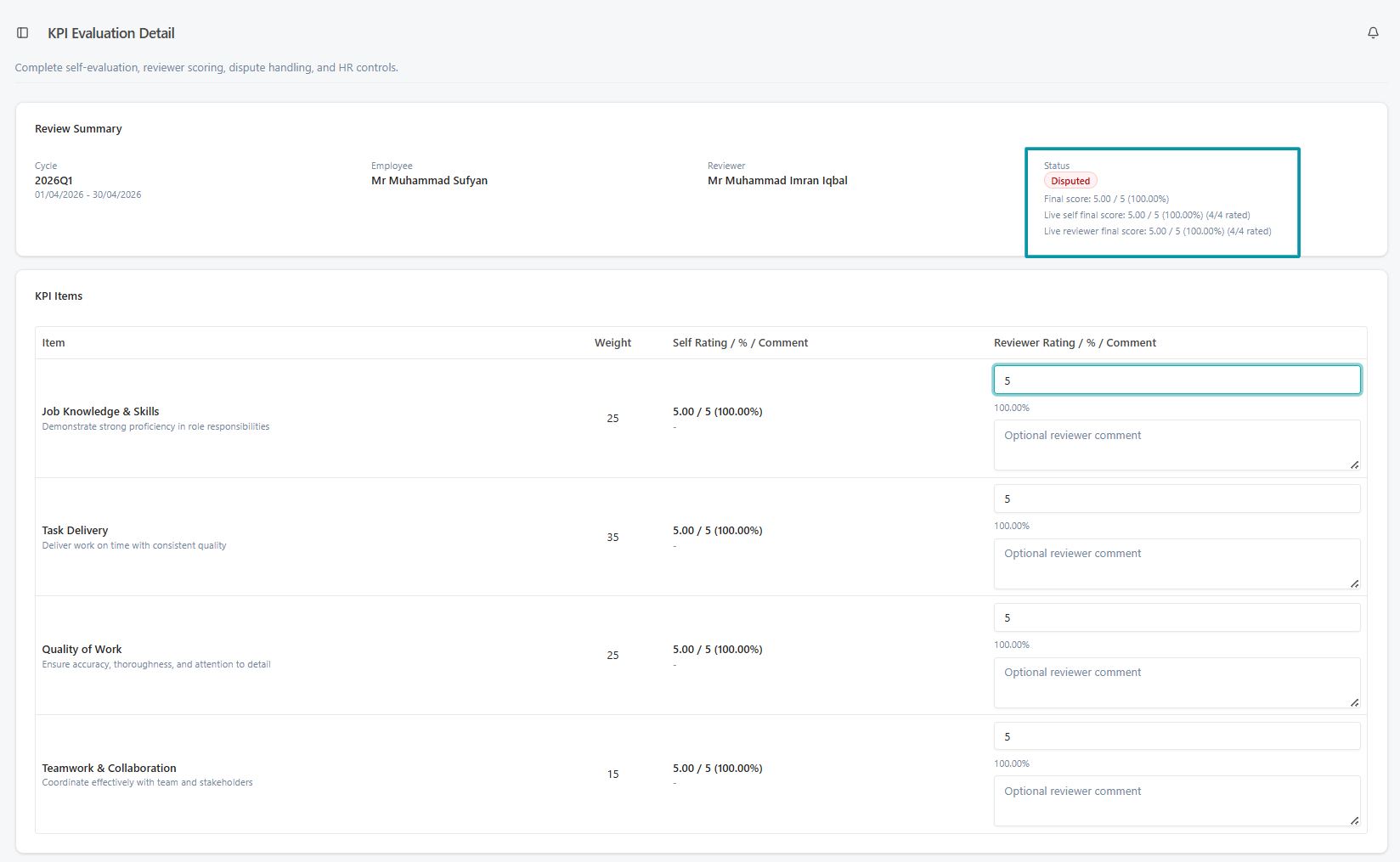
If an employee raises a dispute and HR refers it back to you, you will receive a notification. The evaluation reappears in your queue with a note from HR. Update your scores or comments as needed and resubmit.
Re-review form after employee dispute
If the employee remains unsatisfied after your re-review, they can escalate directly to HR. Once escalated, the evaluation is no longer in your queue — HR handles it from that point and will force-finalize the outcome.
Reviewer Auto-Assignment
If an employee's reporting line changes (i.e., they are reassigned to report to a different manager), the system automatically updates the reviewer on any of their evaluations that are still in Draft or Self-Submitted status. This means you may receive new evaluations in your queue if an employee is transferred to your team mid-cycle.
Evaluations that have already reached Manager Reviewed stage or beyond are not affected by reporting line changes.
Notifications
You will receive notifications at the following points:
| Event | Notification |
|---|---|
| An employee submits their self-assessment | You receive an in-app and email notification |
| An employee escalates a dispute to HR (after your re-review) | You receive a notification that HR has taken over |
| HR finalizes the evaluation | You receive a confirmation |
Scoring Scale Reference
| Score | Label | Meaning |
|---|---|---|
| 5 | Excellent | Consistently exceeds expectations |
| 4 | Good | Meets expectations and often exceeds |
| 3 | Average | Meets expectations |
| 2 | Below Average | Partially meets expectations |
| 1 | Poor | Does not meet expectations |
The system converts scores to a percentage automatically:
- 90% and above → HiPo (High Potential)
- 50–89% → Standard
- Below 50% → PIP (Performance Improvement Plan)
What Happens After You Submit
- HR reviews the evaluation and may adjust or finalize it.
- The employee is notified of the final outcome.
- The employee can accept the result or dispute it.
- If disputed, HR may ask you to re-review (see section above).
You may be contacted by HR if they have questions about your scores.