Probation Reviews
When a new employee joins your team, they go through a probation period. Near the end of that period, HR will trigger a formal probation review and assign it to you. Your job is to assess the employee's performance and recommend an outcome.
The Probation Review Workflow
HR triggers review and assigns it to you
        ↓
You fill the assessment form and recommend an outcome (your step)
        ↓
HR approves or sends back for revision
        ↓
Outcome is applied to the employee's record
Step 1 — Find Your Probation Review
When HR assigns a probation review to you, you will receive a notification. You can also find it in your task queue:
- Click Actionable Items in the left sidebar.
- Look for items labelled Probation Review Assigned or Probation Review — Action Required.
- Click the row to open the review.
Alternatively:
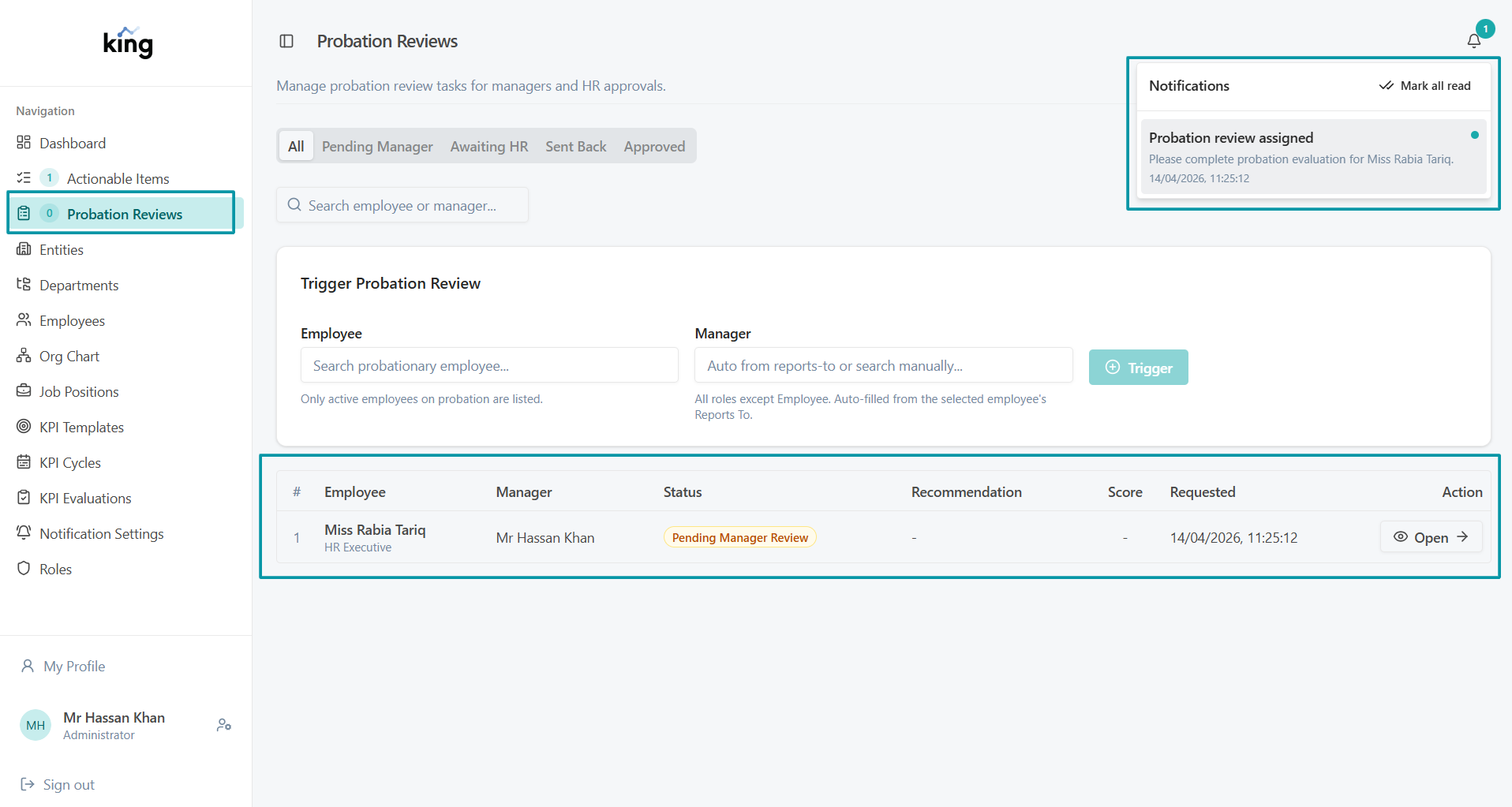
- Click Probation Reviews in the left sidebar.
- Find the review for your employee in the list.
- Click Open to view it.
Probation Reviews list
Step 2 — Open the Review
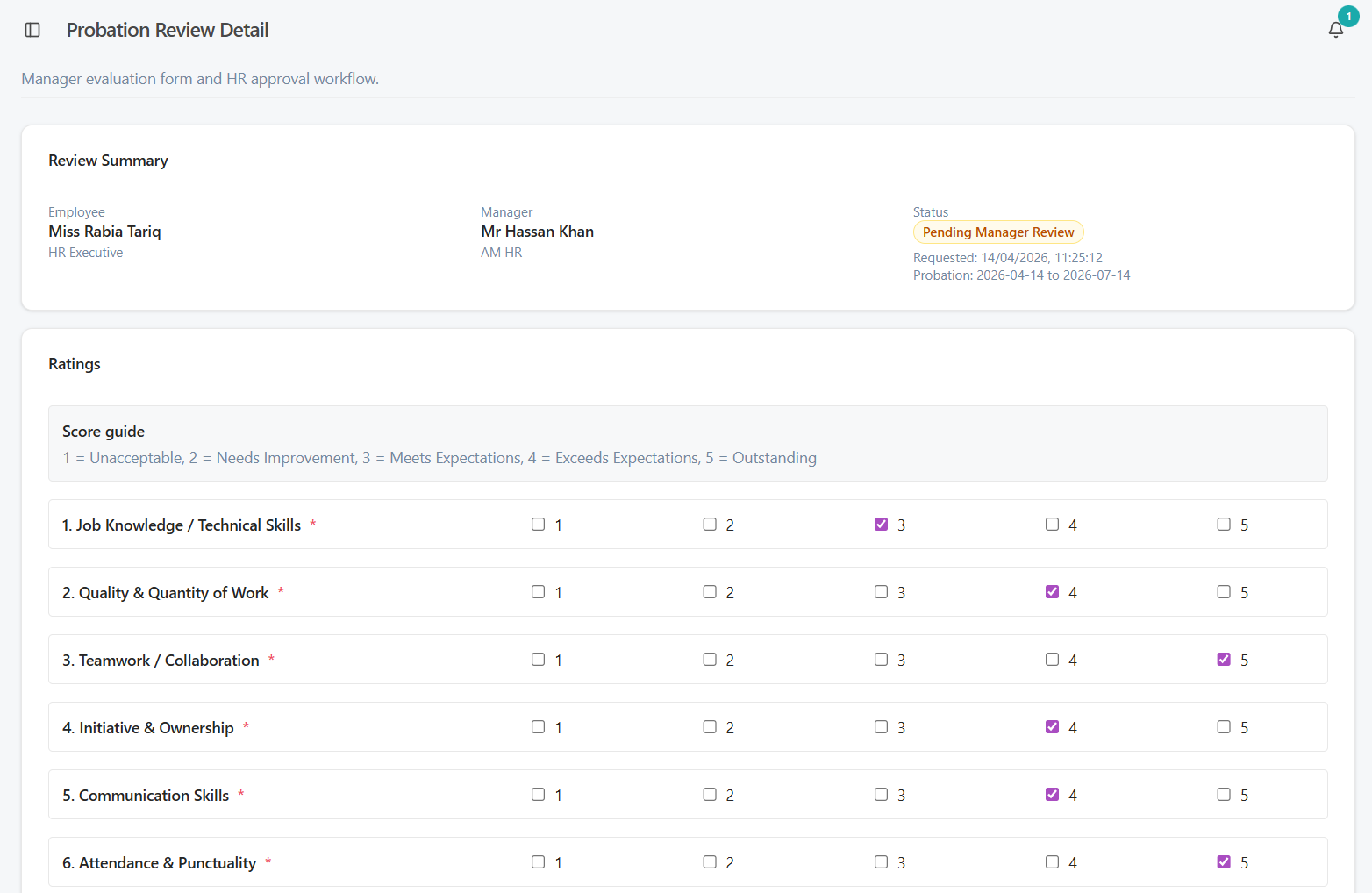
Click Open to open the probation review detail page. You will see:
- The employee's name and department
- The review status
- The assessment form waiting to be filled
Probation review form — ready to fill
Step 3 — Fill the Assessment Form
The assessment form asks you to evaluate the employee across key areas. Be honest and specific — your comments and recommendation help HR make a fair decision.
Fill in:
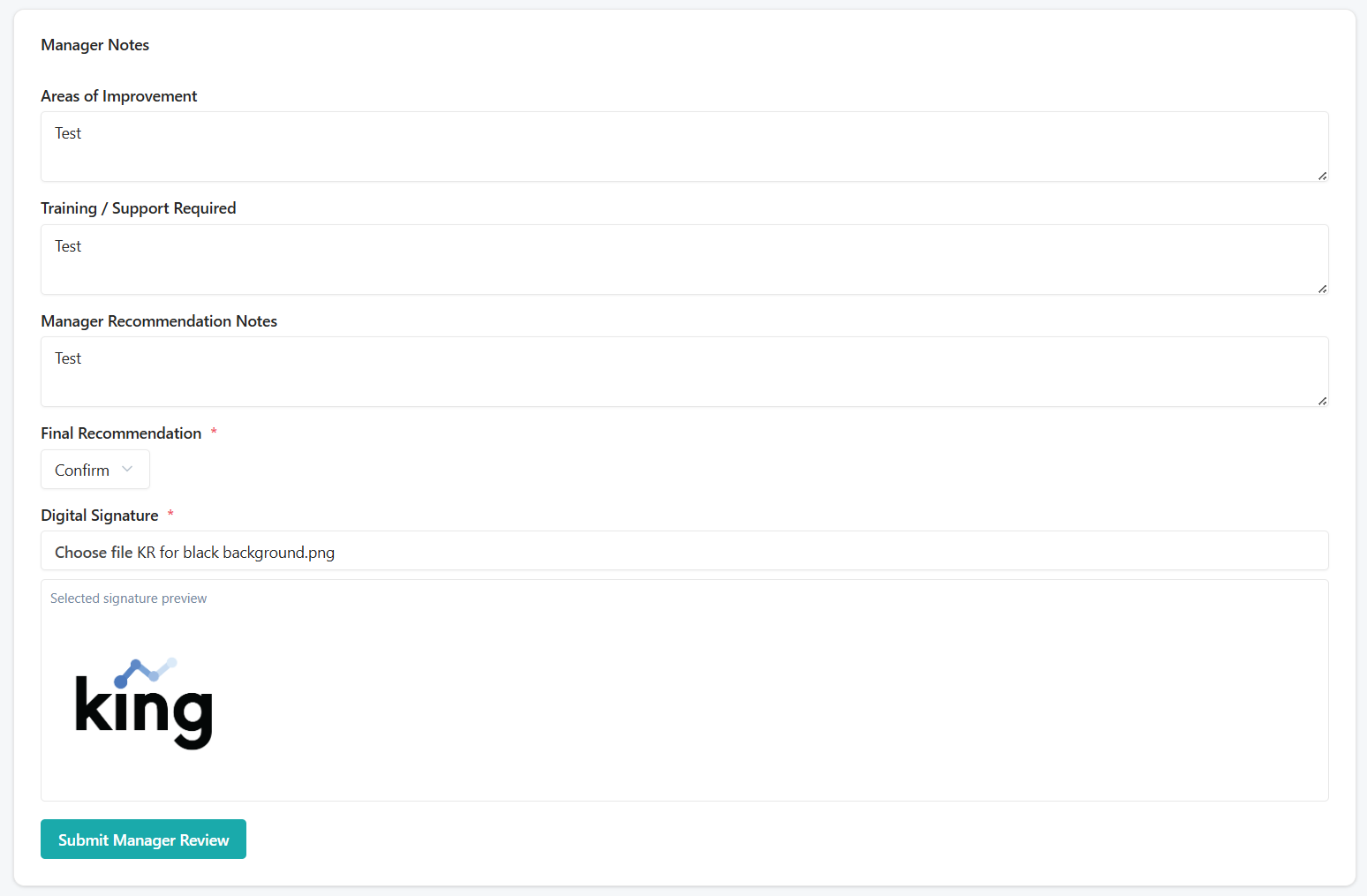
- Assessment comments — your overall view of the employee's performance during probation
- Recommended outcome — choose one of the following:
| Outcome | What It Means |
|---|---|
| Confirm | Employee has passed probation — recommend confirming as permanent staff |
| Extend Probation | More time needed — recommend extending the probation period |
| Terminate | Employee has not met the required standard — recommend ending employment |
Think carefully before selecting an outcome. Provide enough detail in your comments to justify your recommendation.
Probation review form — ratings and recommendation filled in
Step 4 — Submit Your Assessment
- Review what you have written.
- Click Submit Manager Review.
- Confirm when prompted.
- The review moves to Manager Submitted status.
- HR is notified to review your assessment and make a final decision.
Once submitted, you cannot edit your assessment unless HR sends it back to you for revision.
If HR Sends It Back
HR may return the review to you if they need more detail or have questions about your assessment. When this happens:
- You will receive a notification.
- The review reappears in your Actionable Items with a note from HR explaining what is needed.
- Update your assessment and resubmit.
What Happens After You Submit
HR reviews your assessment and selects the final outcome. You can see the HR decision section once HR has acted on the review.
HR decision section
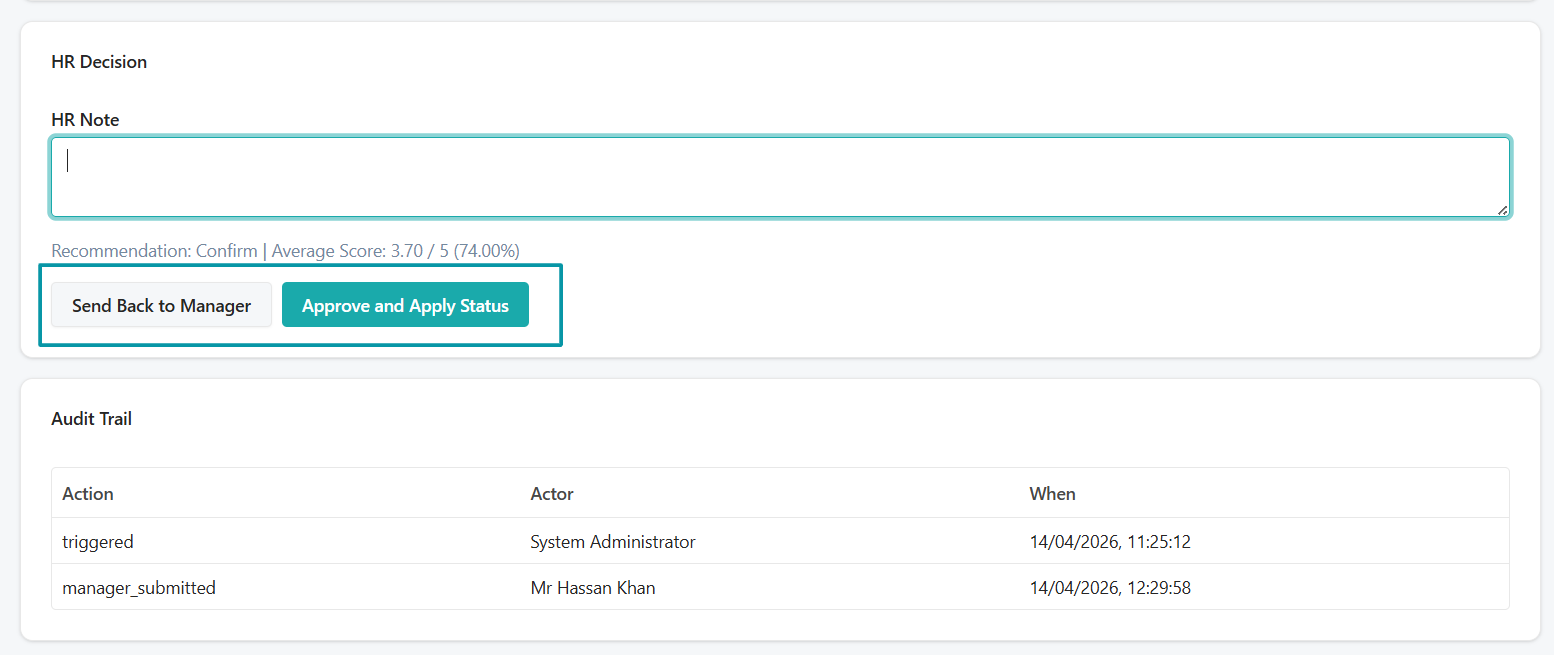
- Confirmed — Employee's status changes to permanent (Active, Confirmed). They become eligible for KPI evaluations.
- Extended — Probation continues. HR will trigger a new review when the extended period ends.
- Terminated — Employment ends. Status changes to Inactive, Terminated.
Both you and the employee are notified of the final outcome.
Tips
- Submit the assessment as early as possible — HR cannot finalize the review until you submit.
- If the employee's probation end date is approaching and you have not received a review assignment, check with HR.
- Your comments are visible to HR and may be referenced in formal records. Keep them factual and professional.