Signing In & Out
How to Sign In
- Open the HRMS in your web browser. You will see the Sign In screen.
- Enter your email address and password.
- Click Sign In.
- You will be taken to your Dashboard.
Your login email is typically your work email (e.g., firstname.lastname@kingrevolution.com). If your work email has not been set up yet, use your personal email instead. If you are unsure, contact HR.
First Time Signing In
If this is your first time logging in, HR will have created your account and set an initial password. When you sign in, the system will automatically redirect you to a password change screen before you can access anything else.
On the password change screen:
- Enter the current password HR provided.
- Enter your new password (minimum 8 characters).
- Enter your new password again in Confirm New Password.
- Click Change Password.
You will be taken to your Dashboard once the password is changed.
If an administrator resets your password at any point (for example, if you are locked out), the same forced password change screen will appear on your next sign-in. This ensures you are always the only person who knows your password.
Forgot Your Password?
You can reset your own password directly from the sign-in screen — no need to contact HR.
- On the Sign In screen, click Forgot Password? below the password field.
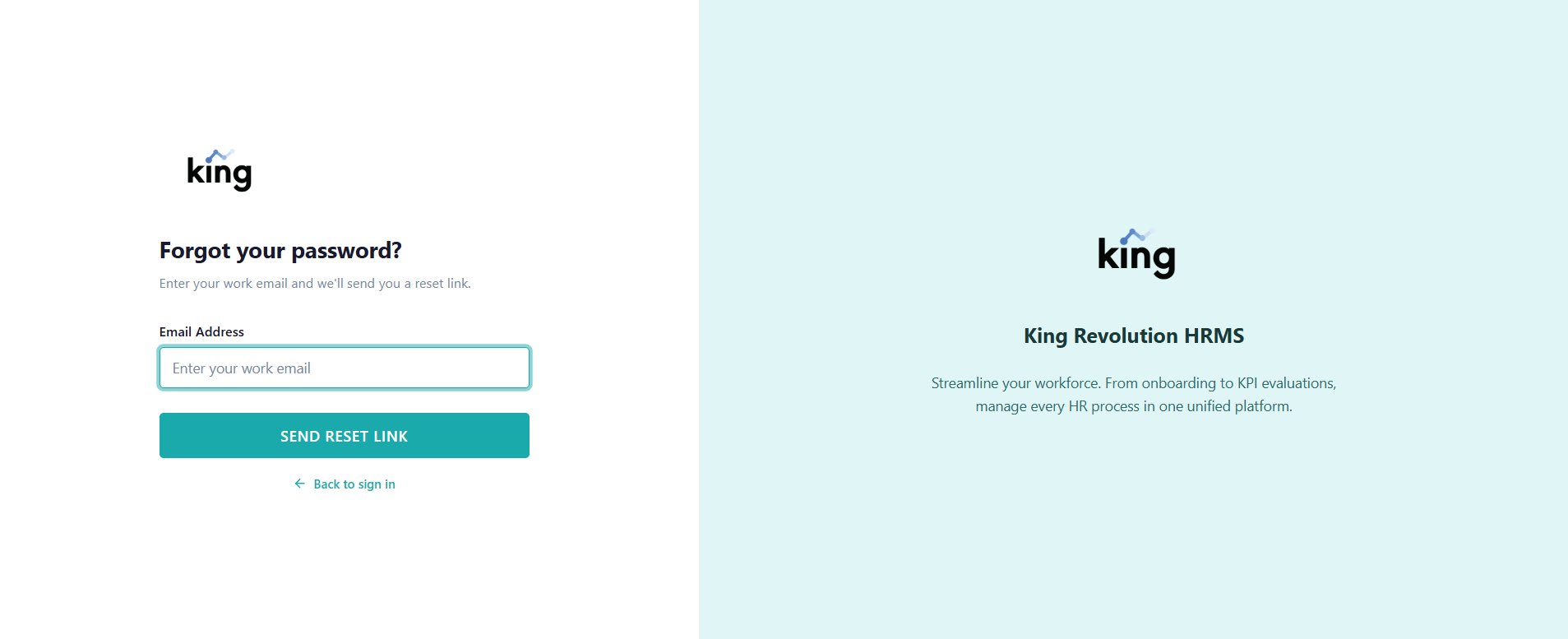
- Enter your email address and click Send Reset Link.
- You will see a confirmation message. Check your inbox for an email with the subject "Reset Your Password — King Revolution HRMS".
- Click the Reset Password button in the email.
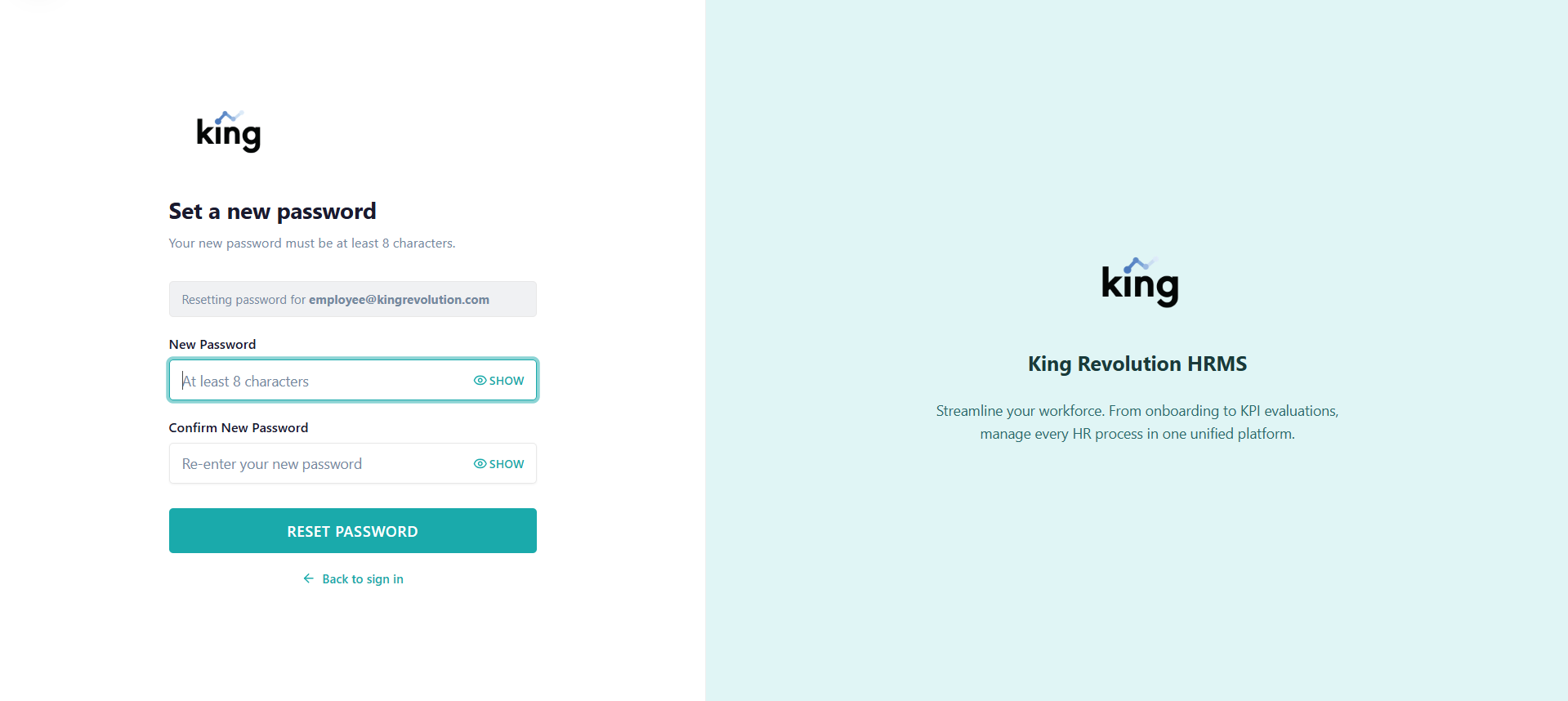
- You will be taken to a page where you can enter and confirm your new password.
- Click Reset Password.
- You will be redirected to the Sign In screen. Sign in with your new password.
The link in the email is valid for 60 minutes only. If it has expired, go back to the Sign In screen and click Forgot Password? again to request a new one.
Step 1 — Request a reset link
Step 2 — Set a new password
How to Sign Out
- Look at the bottom-left of the screen — your name and avatar are displayed there.
- Click the Sign Out button just below your profile.
- You will be returned to the Sign In screen.
Session & Security
- Your session stays active as long as your browser remains open.
- If you are inactive for an extended period, the system may ask you to sign in again — this is normal security behaviour.
- Do not share your login credentials with anyone. Each person must use their own account.
- If you suspect your account has been accessed by someone else, contact HR immediately to have your password reset.