KPI Evaluations
KPI (Key Performance Indicator) evaluations are how the organisation formally measures and documents employee performance. Each evaluation follows a structured workflow involving the employee, their manager, and HR.
This page explains what you need to do at each stage.
What Is a KPI Evaluation?
When HR publishes a KPI cycle for your department, the system automatically generates an evaluation record for you. This evaluation contains a set of KPI items — each representing a performance dimension relevant to your role — and assigns a weight to each item. The weights add up to 100%.
You are scored on each item on a scale of 1 to 5:
| Score | Meaning |
|---|---|
| 1 | Poor |
| 2 | Below Average |
| 3 | Average |
| 4 | Good |
| 5 | Excellent |
Your overall score is calculated as a weighted average of the manager's scores across all items. The result is expressed as a percentage.
The Evaluation Workflow
Your evaluation passes through the following stages:
Self-Assessment → Manager Review → HR Review → You Accept or Dispute → Completed
You are involved at two stages: the Self-Assessment at the beginning, and the Accept/Dispute response at the end.
Evaluation Windows
KPI cycles run on fixed dates. Each cycle has two time-boxed windows:
| Window | What It Controls |
|---|---|
| Self-Assessment Window | The period during which you can submit your self-assessment |
| Manager Review Window | The period during which your manager can submit their review |
When a window is open, the relevant action button (e.g., Submit Self-Assessment) is active. Outside the window, the button is disabled and a message is shown explaining that the window has closed.
Requesting a Window Extension
If you need more time and the self-assessment window has closed before you submitted, you can request an extension from HR:
- Open your evaluation.
- Click Request Extension (appears when the window is closed and you have not yet submitted).
- HR will be notified and can reopen the window if approved.
A window extension request is a notification to HR — it does not automatically reopen the window. HR will contact you once a decision is made.
Step 1: Self-Assessment
When a new evaluation is assigned to you, you will receive a notification and it will appear in your Actionable Items queue.
How to complete your self-assessment:
- Go to KPI Evaluations in the sidebar, or open Actionable Items and click the evaluation.
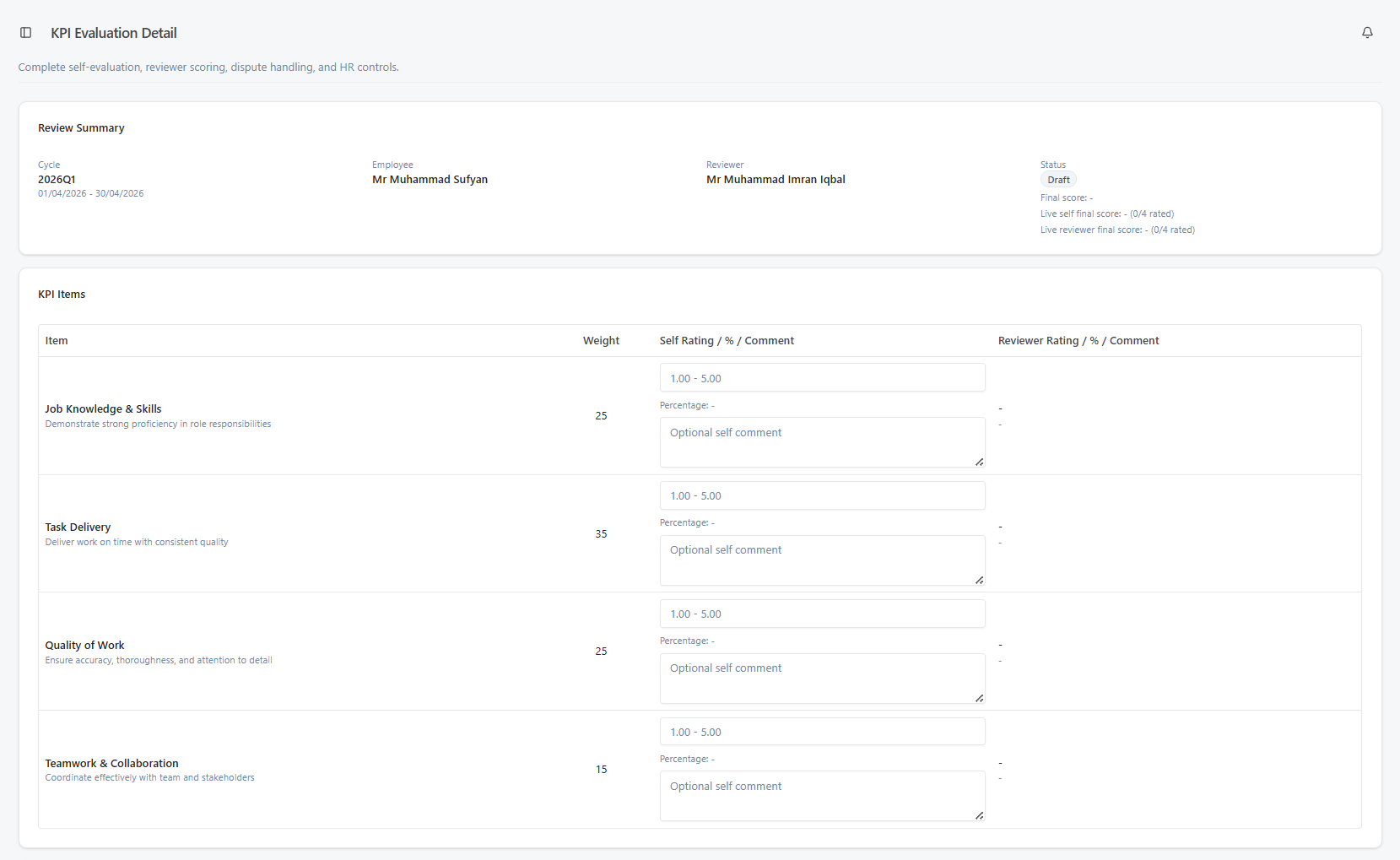
- The evaluation detail page opens, showing all KPI items.
- For each item:
- Select a score from 1 to 5.
- Enter an optional comment to explain or support your score.
- As you enter scores, a live score preview updates in real time — you can see your projected overall percentage before submitting.
- When you are satisfied, click Submit Self-Assessment.
KPI evaluation form — scoring each item
General comments and Submit button
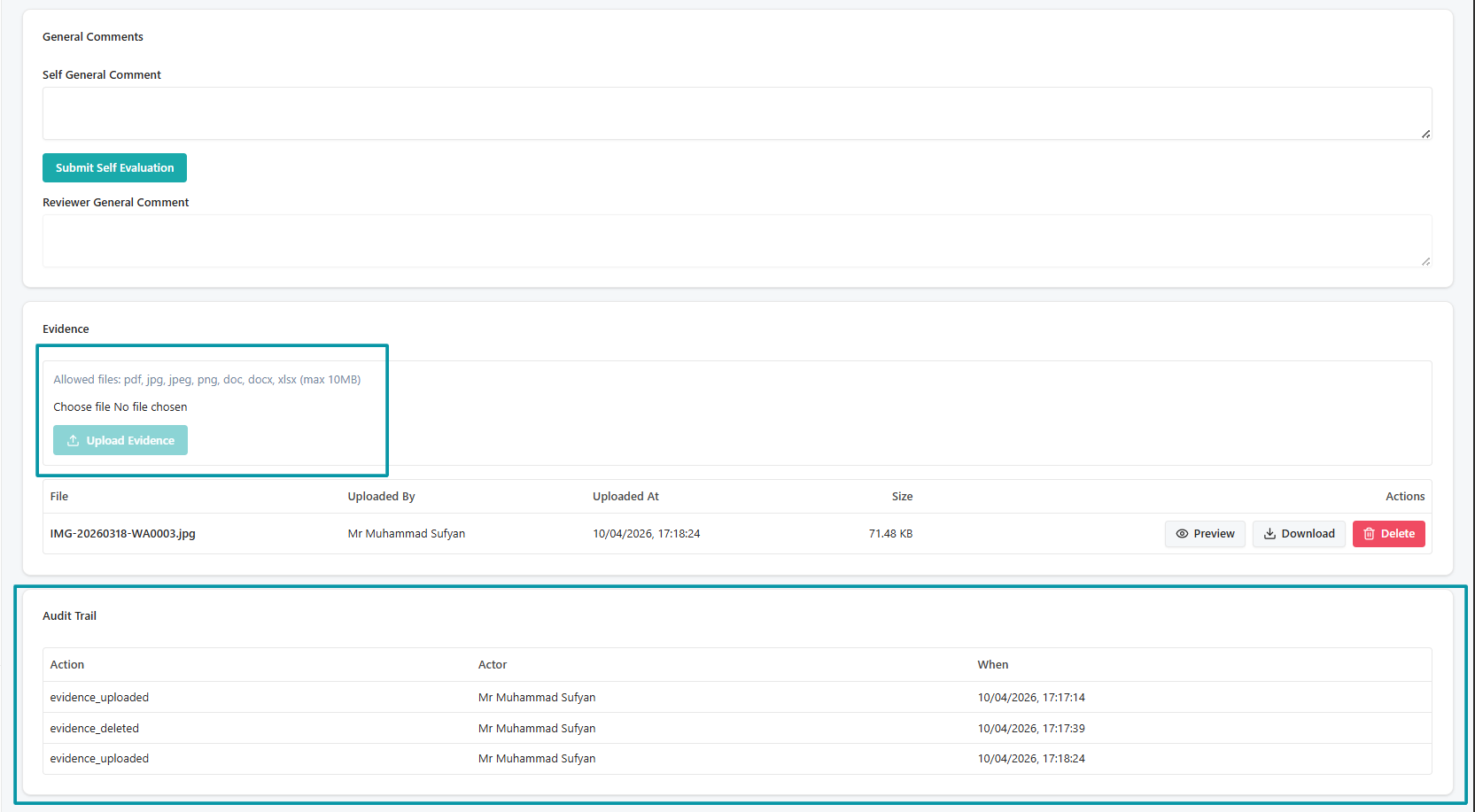
Your self-scores and comments are visible to your manager and HR throughout the process. Use the comment field to highlight achievements, provide context, or draw attention to relevant work.
Once submitted, the evaluation moves to Manager Review and your reviewer is automatically notified. Review your scores carefully using the live preview before clicking submit.
Step 2: Wait for Manager and HR Review
After your self-assessment is submitted:
- Your assigned reviewer (manager or team lead) scores each item and may leave comments.
- HR then reviews both sets of scores and submits their overall assessment.
You will receive a notification when HR has completed their review and your response is required.
Step 3: Accept or Dispute
After HR submits their review, the evaluation will appear in your Actionable Items queue with a status of HR Review Complete. You must respond by either accepting or disputing the result.
Option A — Accept
If you agree with the evaluation result:
- Open the evaluation.
- Review the scores and comments from your manager and HR.
- Click Accept.
The evaluation moves to Accepted status. No further action is needed from you.
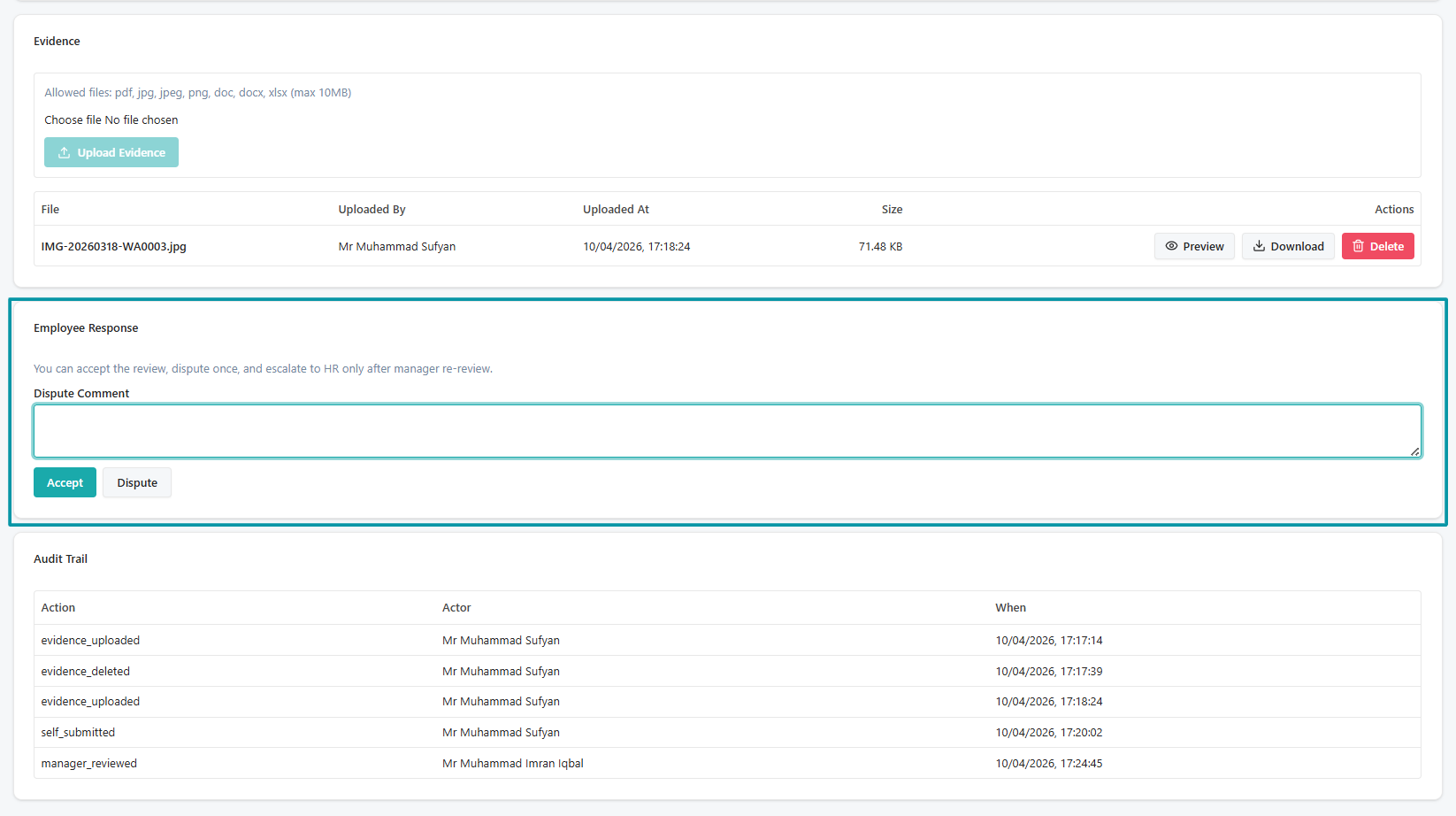
Option B — Dispute
If you disagree with the evaluation result and want to raise a formal objection:
- Open the evaluation.
- Click Dispute.
- Enter a clear dispute reason explaining your disagreement.
- Click Submit Dispute.
The evaluation moves to Disputed status. Your manager will be asked to re-review. Take a moment to write a clear dispute reason — it helps your manager and HR understand your concern quickly.
Employee Response — Accept or Dispute
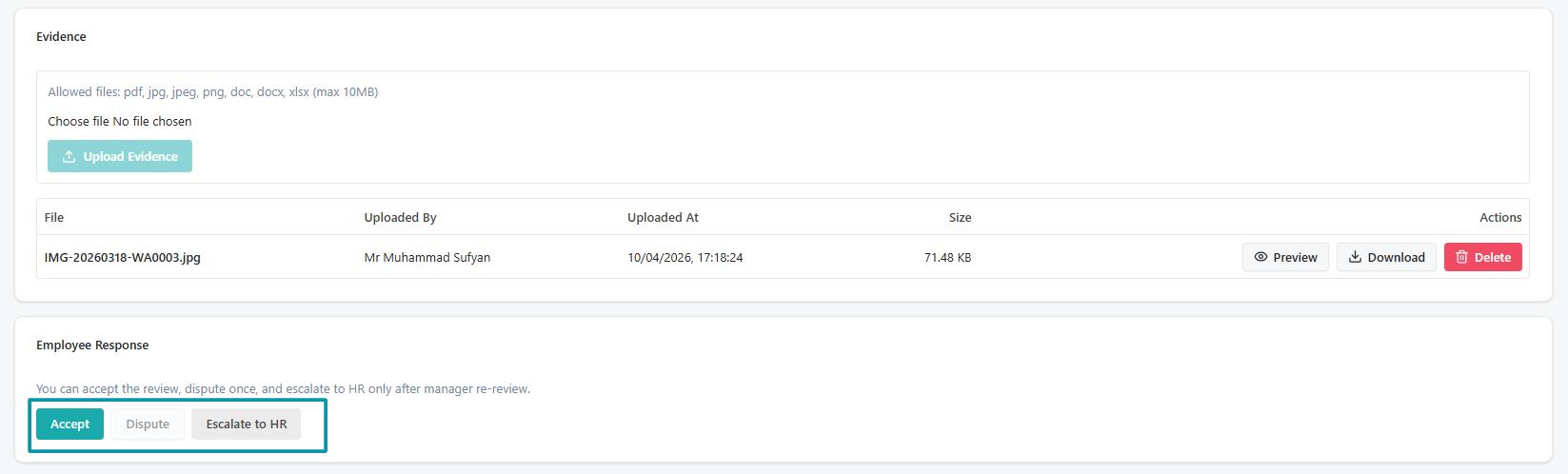
Option C — Escalate to HR
After your manager re-reviews a disputed evaluation, you will have the option to Escalate to HR if you remain unsatisfied.
- Open the evaluation.
- Click Escalate to HR.
Once escalated, the Accept and Dispute buttons are disabled — the matter is in HR's hands. HR will force-finalize the evaluation once the dispute is resolved. You will receive a notification when this happens.
Escalating to HR after manager re-review
HR reviews your dispute reason alongside the full evaluation history. HR will finalize the evaluation directly — no further action is required from you.
Uploading Evidence
At any point during the Self-Assessment stage, you can attach supporting evidence to your evaluation:
- Open the evaluation.
- Find the Evidence or Attachments section.
- Click Upload Evidence.
- Select a file (max 1 MB — PDFs, images, and documents supported).
- The file is attached and visible to your reviewer and HR.
Evidence is useful for demonstrating achievements that may not be immediately visible from scores alone — for example, a project deliverable, a certificate, or performance data.
Uploading evidence to your evaluation
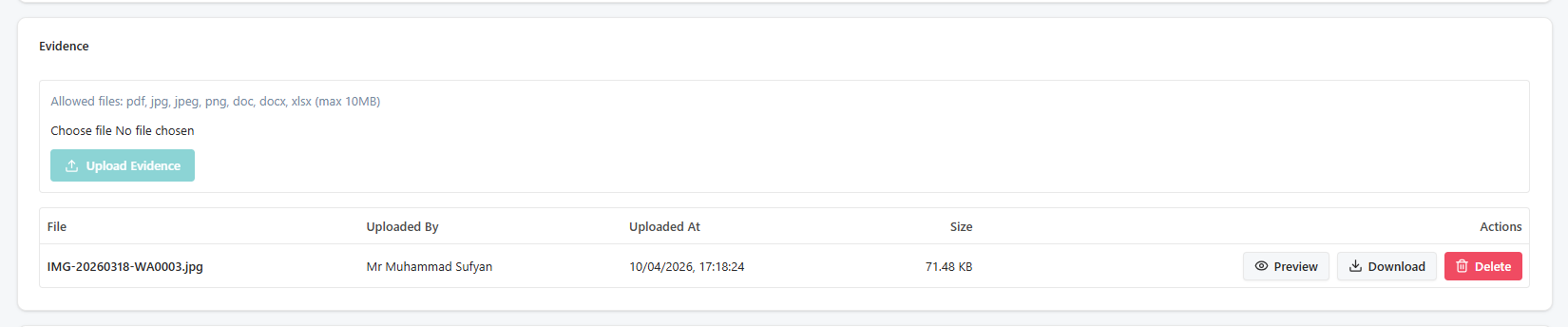
To preview an uploaded evidence file, click the eye icon. To download it, click the download icon.
Understanding Your Score
After HR review, you can see a full breakdown of your evaluation:
| Element | Description |
|---|---|
| Self Score | Your score for each item |
| Manager Score | Your reviewer's score for each item |
| Weight | The percentage importance of each item |
| Overall Score | Weighted average of manager scores — shown as a percentage |
| Performance Flag | Classification based on overall score (see below) |
Performance Classifications
| Score Range | Classification | What It Means |
|---|---|---|
| 90% and above | HiPo (High Potential) | Outstanding performance — may be considered for fast-track confirmation or advancement |
| 50% – 89% | Standard | Normal performance range |
| Below 50% | PIP (Performance Improvement Plan) | A performance improvement plan may be initiated by HR |
Notifications
You will receive notifications at the following points in the evaluation process:
| Event | Notification |
|---|---|
| A new evaluation is assigned to you | In-app and email notification |
| You submit your self-assessment | Your reviewer is notified automatically |
| HR completes their review | You receive a notification to accept or dispute |
| HR force-finalizes the evaluation (after escalation) | You receive a confirmation notification |
Check your Notifications page for a full history.