Bank Details
Your bank details are used for payroll processing. The system handles bank information carefully — your first-time setup is direct, but any subsequent changes require HR approval before they take effect.
Accessing Your Bank Details
- Go to your profile via My Profile in the sidebar.
- Click the Bank Details tab.
First-Time Setup
If you have never entered bank details before, you will see an empty form with the following fields:
| Field | Description |
|---|---|
| Bank Name | The name of your bank |
| Account Title | The name on the bank account (usually your full name) |
| Account Number | Your bank account number |
| IBAN | Your International Bank Account Number |
Fill in the details and click Save. Your bank details are saved immediately — no approval is needed for an initial setup.
Requesting a Change to Existing Bank Details
Once your bank details are on file, any change goes through an approval workflow before taking effect. This protects your payroll information from unauthorised modifications.
How to Submit a Change Request
- Open the Bank Details tab in your profile.
- Your current bank details are displayed as read-only.
- Click Request Update.
- A form will appear with your four bank fields.
- Enter the updated information.
- Click Submit Request.
Your request is sent to HR/Admin for review. You will receive a notification when a decision is made.
You can only have one pending change request at a time. The Request Update button will be hidden while a request is pending.
Tracking Your Request Status
After submitting, the Bank Details tab will show the current status of your request:
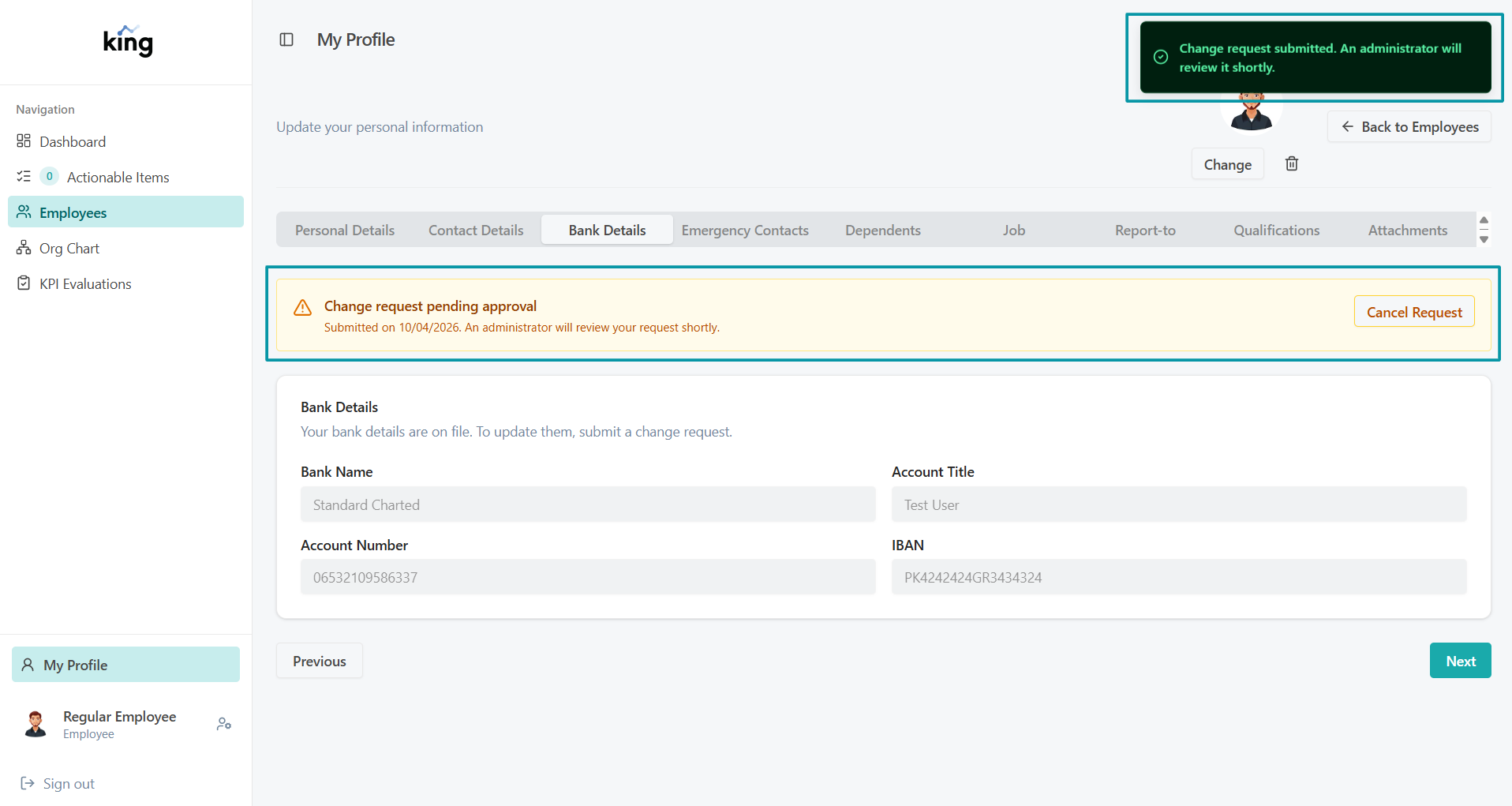
Pending Approval
A notice will appear indicating your request is awaiting review by HR. You can cancel the request at any time while it is still pending by clicking Cancel Request.
Bank details — change request pending approval
Approved
If HR approves the request, your bank details are automatically updated to the new values. You will receive a notification confirming the change.
Rejected
If HR rejects the request, you will see a notice with the reason for rejection provided by HR. You can then submit a new corrected request if needed.
Summary of the Workflow
You submit a change request
        ↓
HR/Admin reviews the request
        ↓
    Approved → Your details are updated automatically
    Rejected → You see the rejection reason; you may resubmit
Frequently Asked Questions
Can I cancel a pending request? Yes. While your request is pending, a Cancel Request button is shown on the Bank Details tab. Cancelling removes the request and allows you to submit a new one.
Why do changes need approval? Bank detail changes directly affect payroll. The approval step ensures no unauthorised modifications are made to where your salary is sent.
What if I submitted wrong information? Cancel the pending request and submit a new one with the correct details.