Dashboard
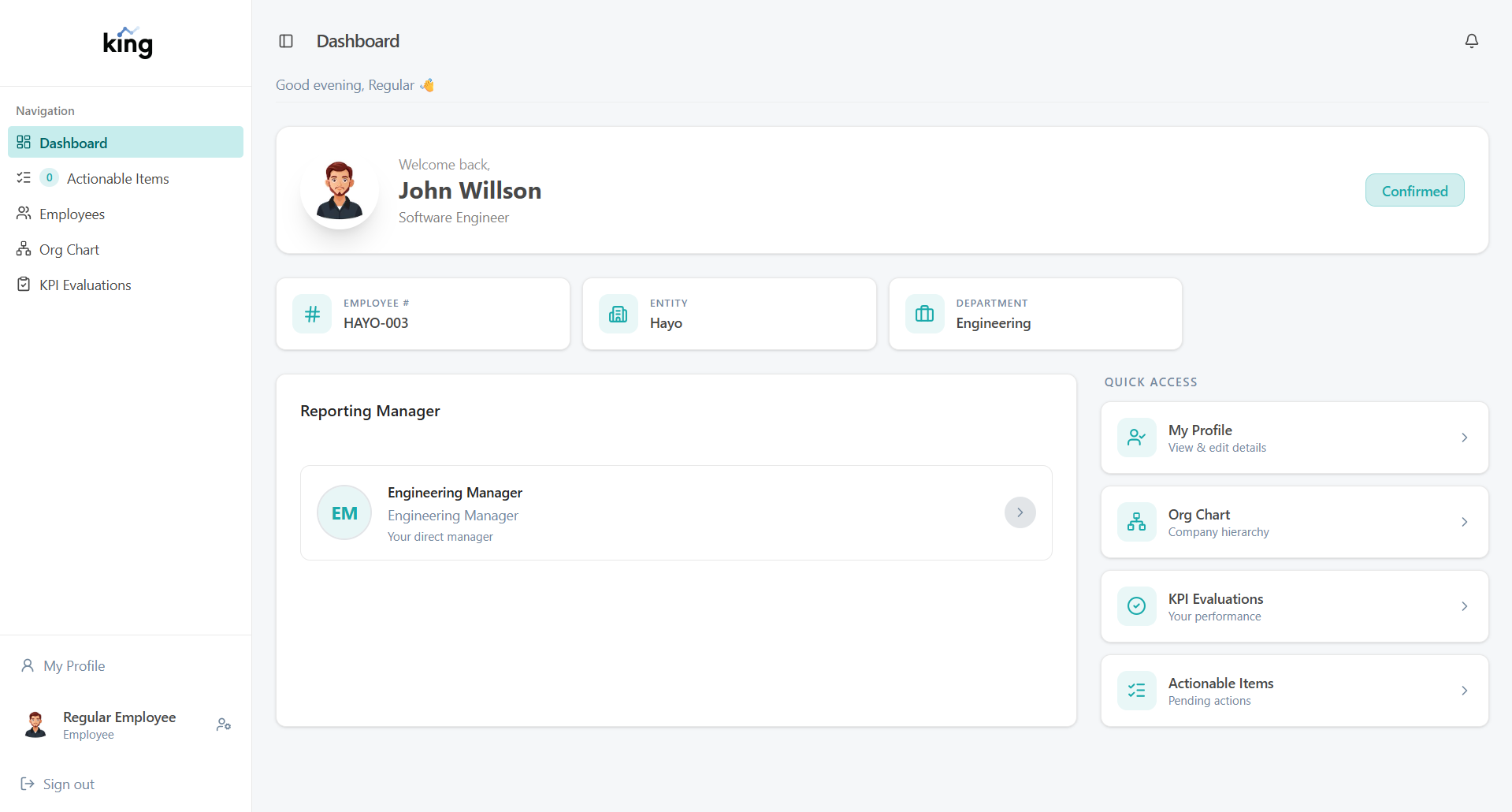
The Dashboard is the first screen you see after signing in. As an employee, it shows a personal summary card with your key details at a glance.
What You See on Your Dashboard
Your dashboard displays a profile summary card containing:
| Information | Description |
|---|---|
| Profile Picture | Your uploaded photo, or your initials if no photo has been uploaded |
| Full Name | Your display name as recorded in the system |
| Job Title | Your current job position |
| Entity | The company you belong to |
| Department | Your department |
| Join Date | The date you joined the organisation |
| Employment Status | Your current lifecycle status (e.g., Probationary, Confirmed) |
| Reporting Manager | The name of your direct supervisor, if assigned |
At the bottom of the card you will find two quick-access links:
- My Profile — takes you directly to your employee profile to view or edit your information
- Org Chart — opens the company organisational chart
Your Dashboard
Navigating the System
Use the sidebar on the left to navigate between different sections of the HRMS. As an employee, you will see the following menu items:
| Sidebar Item | What It Is |
|---|---|
| Dashboard | Your home screen |
| Actionable Items | Your personal task queue — things that need your attention |
| Employees | View the employee directory (your own record only) |
| Org Chart | The company reporting hierarchy |
| KPI Evaluations | Your performance evaluations |
| My Profile | Your full employee profile |
The Actionable Items badge in the sidebar shows how many tasks are waiting for your action. Check this regularly.
Sidebar Footer
At the very bottom of the sidebar you will find:
- My Profile — a quick link to your employee profile
- Your name and avatar — click this to go to your account settings (display name, password)
- Sign Out — to securely end your session